Showing posts with label PC PORTAL. Show all posts

Tuesday, November 24, 2015

31 Basic Computer Software You Ought To Have


Although, different people working in different fields, will need different set of software for their daily operations, there are however, some few basic applications that everyone should have installed on their computers. But, before we begin, let me talk a little on, the types of computer software we have today.

Types of Computer Software:
There are basically, two types of software on computer systems;
  1. System software: This is the most important software on your computer (laptop or desktop) because, they manage/run your computer’s memory, processes, and all other software and hardware. Hence, they come pre-installed on your machine, by the manufacturer of your device. An example of System software is, Operating system (OS). Examples of operating systems are; Windows OS (by Microsoft), Macintosh OS (by Apple inc.), and Linux OS.
  2. Application Software: These are programs or software designed to perform a group of coordinated functions, tasks, or activities for the benefit of the user. They are mostly 3rd party apps, and virtually anyone with a coding ability, can create one (at least, my younger brother does). Some examples of application software are; Spreadsheets, web browsers, photo editors, etc.
New computers normally come with crapware. Crapware are application software pre-installed on your machine by the manufacturers, and may or may not be of any use to you. However, to fully enjoy your device, there are some important applications you simply can’t do without. I will be talking on 31 of such.

Note: Some software companies are converting their software into online tools. This is because, unlike offline apps, software hosted online are always (automatically) updated in real-time.
For this reason, some of the applications listed in this post, may not necessarily be downloadable.

1. Web Browser(s):
These are applications that allow users to surf the web (internet). Though Windows laptops come pre-installed with ‘Internet Explorer (IE)’, I would recommend you installing ‘Google Chrome’ and/or ‘Mozilla Firefox’.
This is because, Internet Explorer is quite porous. Spyware, junkware and malicious programs normally infiltrate IE. Chrome and Mozilla Firefox however, were built with the security of the user in mind. They will block any suspicious website or app from installing unsolicited and injurious programs. This is not to say that, Chrome or Firefox are 100% free from attack though.
Another advantage of Chrome and Firefox over Internet Explorer is, the sea of add-ons and plugins available for them. These tools will make your browsing experience sweet and less stressful.

2. Word Processors:
Examples of word processors are; Microsoft Office Word and OpenOffice.
In the past, Windows laptops always came pre-installed with MS word and the other Microsoft Packages. However, I noticed that these days, newer laptop models only come with trial versions of the new Microsoft Office 365. To use it fully, one is expected to pay.
In that case, if you are unable to purchase the new Microsoft Office Word 365 (via internet purchase), you could always collect the raw file of Microsoft word 2007, 2010 or 2013 from a friend, or buy the physical program disc to install.
Once you install it, every other Microsoft Office Product (Microsoft Power Point, Microsoft Excel, Microsoft Outlook, OneNote) should also be installed (if you select/tick them during installation.)

3. Anti-Virus:
Anti-virus programs are designed to, detect and destroy computer viruses.
Examples of anti-virus programs are; McAfee anti-virus (usually pre-installed). However, I would recommend, Avast, AVG, Avira or Norton AV. You usually get a trial version for 30 days. After that period, you could either, buy the Premium version or, get a cracked version.
Feel free to suggest some other anti-virus programs that you use (in the comment section).

4. Registry CleanUp Tune-Up Utilities | System Diagnostics Tool:
The computer registry, is the central database that contains all of the necessary information about your software, hardware, preferences, OS, and more.
Cleaning your System’s registry, is an important part of overall PC maintenance. TuneUp utilities, help to manage, maintain, optimize, configure and troubleshoot a computer system.
‘CCleaner’ and ‘Comodo System Utilities’, are examples of Registry Clean-up programs.

5. Video Player:
One of the main activities for which most people use their computers to do is, watch videos. You need a Video player that will give you optimal picture and audio quality.
VLC is the most popular video player. Other good video players are, KMPlayer, GOM Media Player, DivX Player and RealPlayer.

6. Music Player:
If you are like me, you cannot go a single day without playing some music from your device. Even though video players can also play audio files, it is advisable to install a dedicated music player, to fully understand the meaning of, “music is the food of the soul”!
My recommendations are; MusicBee, Winamp, MediaMonkey and Foobar2000.

7. Flash Player:
Flash players are web browser plugins that can also be supported on some mobile devices (especially smartphones). Without flash players, you cannot view multimedia, execute rich internet applications or stream video/audio. Adobe flash player is the major flash player available today. Go ahead and suggest other ones you may know of.

8. Photo Editor:
A time will come, when you will need a Photo editor. Whether to do simple things like, add text to an image, crop an image, or complex things like, adding yourself to a 1960s photo (as if you were really there), photo editors are very important tools to have around.
Examples of photo editors are; GNU, GIMP, PhotoCut, Super Refocus, and Adobe Photoshop. Of all these photo editors, Adobe Photoshop is the best! But unfortunately, it is also the hardest to master.

9. Computer-Aided Graphics Design Software:
You don’t have to be a seasoned Graphics designer to have these design tools on your device. Within 2 days of using a graphics design software, I designed a logo/header image for my blog: NOSR Blog, with no prior training.
Some example of graphics design tools are; Microsoft paint, So Think Logo Maker Pro, Corel Draw, Autodesk inventor, Auto-CAD, Adobe Illustrator. Microsoft paint is a bitmap based software, but it is easy to use. Though an underrated piece of software, MS paint can be used to create some unbelievable work.

10. DJ Music Mixing Software:
This is a really fun application to have. Once in a while, you may just be in the mood of adding cool DJ-type effects to the music you are playing. You could also surprise everyone with your scratching skills, at that birthday party.
Examples of such software are; Virtual DJ, Mixxx, Serato DJ, Ableton Live and, Traktor Pro.

11. Ebook Reader:
Electronic book readers (ebooks readers), are software that make it possible to read digital books. A good ebook reader should be able to open multiple formats like; pdf, ePub, Mobi, XPS, DjVu, CHM, Comic Book (CBZ and CBR), etc.
Examples of ebook readers are; Foxit Reader, Adobe Reader, Sumatra PDF reader, and Calibre.

12. Video Chatting Software (Skype):
Web-cam enabled laptop users can get more value from their machine. Skype is the major video chat software I know of.

13. Note-Taking Software (Keynote):
Whenever the light-bulb goes off in your head, you may want to quickly take down your thoughts else, your short-term memory brain-cells will betray you.
Examples of note-taking tools are; Evernote, Resophnotes, Elements, Simplenote (iOS) and KeyNote.

14. Downloaders:
If you are a surfer of the net, you simply cannot do without fast downloaders. They help us download/save our favorite apps, large images, music and videos onto our computer. Here are the best downloading software; IDM, Torrent, Orbit downloader, SaveFrom.Net, NetVideoHunter (Firefox add-on), Total Video Downloader (for Mac), XDM (Xtreme Download Manager).

15. File Converter:
Some applications may only require/recognize certain File formats. Therefore, you will need a file converter to convert any of these file formats whichever way you want.
Known file formats are; png, jpg, jpeg, tiff, gif, bmp, emf, doc, docx, xls, rtf and ppt.
Some file converters can batch-convert a file format into multiple other formats (simultaneously). Online file converters are more popular. Try, http://convertonlinefree.com

16. File Compressor/Decompressor:
Some large files will need to be compressed, in order to send or upload them. In the same vein, the receiver or downloader of the compressed file will have to decompress the archived file.
These are very good file compressers/decompressers; 7-Zip, WinZip, Peazip, and, Zipeg.

17. Gaming Software:
I don’t have much to say about this as I am not a game freak. However, here are some games I plan on having in the not so distant future; Call of Duty, God of War, GTA 5.0, and Minecraft.
Note: Not every computer has the power to execute most modern games. Your system specs and graphics card must be up to par.

18. Spreadsheet:
Spreadsheets are very important to teachers, bankers, sales people and businesses in general. Examples of spreadsheet programs are; Microsoft Excel, Google Spreadsheets (hosted online), Open Office, and Apple Numbers.

19. Audio Editor (Audacity):
Audacity is the world’s most popular free open source digital audio editor. It is the easiest audio editor to use. Audio editors are used for; recording audio on computers (via a headset or professional microphone), editing audio clips, and adding effects to audio clips etc.

20. YouTube to MP3 Converter:
These software convert video or other audio formats, to mp3. Its a great way to create podcasts or have your favorite music in mp3 format. Good converters are; ChangeToMp3, Total Video Converter Lite (for Mac users), VLC (bet you didn’t know that).

21. Google Drive:
This Software will help you send large files via email (gmail). Gmail only permits 25MB as the limit of the total file size(s) that can be attached, per mail. Say you want to send a movie to a friend, and the size is 50MB or even 800MB, the only way to send such heavy files, is with the help of Google Drive. Download your own Google drive today.

22. Cloud Storage:
Cloud storage is a type of storage of data wherein, data is stored in and accessible from multiple distributed and connected resources that comprise a cloud.
Cloud storage is important for data back-up, archiving and disaster recovery. You can save the entire content of your computer in the “clouds”, then access them from any location in the world (without carrying around your storage devices)! The best cloud storage providers are; Microsoft Cloud, JustCloud, BackBlaze, CrashPlan, Carbonite, iDrive, DropBox, OneDrive, etc.

23. VPN Software:
When using a public Wi-Fi Network, your accounts are at risk! You are advised to get a dedicated IP address (cloaker). It is legal, and a security measure observed by the world’s top companies.

24. Last.fm:
Social networking hits music with Lastfm. It enables you to listen to music, get recommendations, and stream radio tailored to your taste.

25. Video Editor:
Good video editors are; Windows Movie Maker, Adobe Premier Pro, LightWorks, Blender, Final Cut Pro, OpenShot, Sony Vegas, etc.

26. Spyware / Adware Removal Software:
If you are seeing random pop-up ads and redirects within your browser, your security is down! Some malicious add-ons or plugins accompany downloads from questionable sites. Again, Internet Explorer is more susceptible to such attacks. Here are the steps to follow, to rid your browsers, of Junkware/Malware.

27. eBook Creator:
Good ebook creators are; MS word (2010 and 2013), Scrivener, Canva, Creatavist, eBook Maestro Pro, Evernote, PagePlus, Vook, Calibre, Ommwriter, and Blurb.

28. ScreenCast Software:
Screencast-O-matic, Camtasia, Ezvid, CamStudio, Snaps Pro, ScreenFlow, Final Cut Pro, QuickTimeX, Jing, Screenr, etc.

29. Google Earth:
Google earth is a virtual globe, map and geographical information program. It is one fun and must-have piece of miracle. Imagine a program that displays satellite images of varying resolution of the earth’s surface, allowing users to see things like cities and houses (at a”bird’s eye view ” angle)!
You can use this program to get directions; using variables such as, street names, cities and establishment. You can also use google earth to view areas subjected to widespread disasters and, even explore and place location bookmarks on the Moon and Mars.

30. Scientific Calculator:
I use calculator application on my Laptop to calculate my age (I’m that dull). I also use them to calculate complex logarithmic functions and integrations. Examples of such programs are;
Microsoft calculator plus, Microsoft Mathematics, and HEXelon MAX. There’s probably hundreds more! Explore your device’s App stores.

31. Desktop Widgets:
Your desktop should hold the most functional widgets like; Clock and Calender. Also, it would be beautiful to have your Screensaver rotate multiple images in slideshow fashion.

Be sure to use the comment section to suggest other basic computer software I may have missed out. Also, play with the share buttons below.

This post was written by Okoli Catalyst. Owner of NOSR www.onlineshopping-

Saturday, September 5, 2015

SHARE SIMPLE SERVER N PSIPHON CONNECTION VIA HOTSPOT | FREE MTN DATA

share-wifi-network
Sharing your free internet vpn connection is really cool if you’re successfully running any of the tweaks on your android phone.  Any of the Simple Server, OpenVPN, Psiphon, DroidVPN cheats and free browsing can be shared or tethered via WiFi Hotspot or USB with another android phone or pc.  Today I’m going to show you how to create a Wi-Fi Hotpot and share your tweaked free data with other devices.
Normally, the Android tethering and hotspot most times refuses to allow other devices to access and share your free internet data connection, therefore the 3 most reliable ways of creating, sharing or tethering your internet connection will be outlined here from the easiest (use of an app on Wi-Fi) to the hardest (Manually configuring your hotspot) mind you very simple if you follow along.


METHOD ONE

How to share or tether your internet connection via hotspot with the use of an App Called [ISWAT TETHER UNLOCK]

Note: **Rooting Required

1.       Make sure your hotspot is switched off to start with
2.       Click here to download and install ISWAT Tether Unlock for android
          From Google Playstore
3.       Run the installed ISWAT app and grant it root permissions.
unlock-tether

4.       On the main screen, tap on the “Unlock Tethering and sit back while it does its works
5.       When the unlocking operation is done, it brings out the pop up “Tethering Unlocked Have Fun, just enable your already created hotspot and connect the other device or PC.
6.       Start browsing on every connected devices

METHOD TWO

HOW TO SHARE OR TETHER YOUR INTERNET CONNECTION TO PC VIA USB CABLE OR HOTSPOT WITH THE USE OF AN APP [PDANet+]

Note:  Rooting NOT Required    recommended!!!

1.       Make sure your hotspot is switched off to start with
2.       Click here to download and install PDANet+ for android
          Direct Download Click Here
3.       Run the installed PDANet+ app.  Note that to share the connection with a PC, you have to download the pdanet.exe file for PC installation.
4.       On the PDANet Android app main screen, there are three options:
          -      USB Tether
          -      Bluetooth Server
          -      Wifi Hotspot
pdanet_screen

5.       Enable USB debugging on your Android (from the “Developer Options”).
6.       Activate the “USB Tether option for best reliability and connect your USB cable to the PC
7.       Install the PDANet for PC (if not already installed) and confirm that it is connected to the phone.
8.       Open the PDANet+ menu from the notification bar of your Windows and click on “Connect Internet (USB)”.
9.       It will verify and authenticate your connection automatically and you will be connected via USB.
After successful connection via USB, you can install Connectify on your PC and share the internet with other devices.

METHOD THREE

HOW TO SHARE/TETHER YOUR INTERNET CONNECTION WITH ANOTHER PHONE OR PC VIA WI-FI HOTSPOT WITH MANUAL CONFIGURATION

1.   Create a Wi-Fi hotspot on the main (primary) phone (running the Simple Server).  Use default (no security hotspot or click to see how to create a secured Wi-Fi hotspot connection).
2.   Now go to the other phone/device (secondary) and switch on the Wi-Fi to start searching for available network (if you have used the secured connection, click to show how to connect).
3.    When connected, long press on the connected network name and then tap on “Modify Network”.
4.    On the next screen, tap on the Show Advanced Options checkbox to open full settings.
wifi-manual-config

5.    On the proxy settings, select “Manual” (Tap on the “none” for the dropdown options to appear.
6.       Configure as follows:

          -        Proxy Hostname: 127.0.0.1
          -       Proxy Port: 8080
        Leave the rest and tap on “Save”

     You don’t have to doubt if this is real or not….Just get the software and try it out.  If it doesn’t works as stated above and more….or if you don’t absolutely love it and have more fun using to Browse…just let us know through the comment section below.  But if it works great, why not share with others.

Monday, August 31, 2015

Simple Android Server Version 3 Announcement

Hello,
There will be a significant update to Simple Android Server in the coming week(s). This update will include a VPN.

This VPN is not based on OpenVPN or any other opensource VPN. We developed it from scratch in order to make it as simple and light as we want.
Another reason for this is that we want to be able to easily add features to the VPN whenever we want and also handle bugs easily without having to go through a sea of code with little documentation.

The VPN will have compression but no encryption (yet) and is fast. However, there is a certain level of latency to be expected since the requests are now traveling through a remote server.

For rooted devices, there will/may be a feature that lets you connect other devices to the SAS VPN installed on another device. So if you have the SAS VPN running on your android device and your WiFi Hotspot is on with some devices connected to it, requests from those connected devices will pass through the SAS VPN installed on your device. With this, you can connect your PC, iPad, iPhones and whatnot.

I am using this feature to create this post now but it is not as stable as it should be yet.

The SAS v3 will also include a way to easily see the values of your current configuration in a very convenient way. This is handy when trying to diagnose SAS connectivity issues.

The current proxy server feature will still be available.

We appreciate that Simple Android Server has been useful to a lot of people. We also hope to always have the ability of increasing it's usefulness.
Here are some screen shot below

How to make any sim work on your modem - Modem Cracking

Here is how to unlock.
Whenever you want to unlock any modem, just
input the IMEI number of the modem into the
IMEI tab on the software and then click on
‘calculate code’. It will automatically generate
the ‘Unlock Code’ and ‘Flash Code’. Copy the 8
digit unlock code on a notepad. The next thing
to do is, insert any other network SIM card e.g.
Etisalat SIM into your modem e.g. MTN modem,
and plug in your modem into your PC USB port.
You will be asked to enter your unlock code
simply because you are using a different SIM
from the modem. Enter the unlock code that was
generated by the Huawei Modem Unlocker and
your modem will be unlocked automatically.
To browse the internet with that different SIM
e.g Etisalat SIM on MTN modem, you will need to
create a profile for Etisalat internet settings on
your MTN modem. To do this, click on ‘Tools’ ,
followed by ‘Options’, then click on ‘Profile
management’ and click on ‘ (new) ’. Input the
Etisalat internet settings as written below.
ETISALAT SETTINGS
Profile Name: Etisalat
APN: etisalat
Access Number: *99#
User Name and Password: You can leave them
blank (empty)
After typing in the settings above, click on ’save’
or ‘ok’. Go back to the initial page that comes up
when you click on the modem icon on your PC
desktop. Select the name you used in saving the
Etisalat settings, then click on connect. You
should be browsing with your Etisalat SIM on
MTN modem now.
These are the settings for other GSM networks.
GLO SETTINGS
Profile Name: GLO
Access Number: *99#
APN: glogwap OR glosecure
PASSWORD: wap OR gprs
USERNAME: wap OR gprs
MTN SETTINGS
Profile Name: MTN
Access Number: *99#
APN: web.gprs.mtnnigeria.net
USERNAME: web
PASSWORD: web
AIRTEL SETTINGS
Profile Name: AIRTEL
APN: internet.ng.airtel.com
Access Number: *99#
User Name: internet
Password: internet
What I am after here is to ensure your Hauwei
USB modem MTN, GLO, ETISALAT or AIRTEL
browses with any other network.

How to deal with shortcut virus on ur pc

Many have been struggling with virus on their pc particularly shortcut and autorun virus.


Shortcut virus turns every of ur folder n files to shortcuts, and it is normally gotten through removable disk.
It can be dealt with with the help of USBFIX, you can Google for it and download it after download following this steps:
>install the setup
>insert any removable disk dat might have Been affected by the virus.
>don't open flash drive, and click on the usbfix icon on desktop.
>when it has open click on clean.
All the virus on ur computer and flash drive will be deleted, funny enough you will still have you file intact.

How To Know if Someone Operated Your PC In Your Absence

How To Know if Someone Operated Your PC In Your Absence

Wish to know whether your phone was used in your absence if the answer was positive
then follow the steps below.

*. In the Run dialog box just
Goto Run and type event vwr.msc
*. After that just note that the Events are always being stored in three log files:Application,
Security, and System. And the amazing thing is that all these logs can be reviewed and
archived.
*. Then, tap the ��System��located in the left-hand column for a list of events.
*. Then search for a date and time in which you are sure that you were not at home and
your computer was supposed to be switch off.
*. After the searching, there you can see how the being penetrate your PC and operated on
it.
*. And also you still look at the time the computer was turned on and off i.e for a particular
day.

Saturday, July 11, 2015

Download Best Windows 8 Activator to Activate Your Windows 8 for Free

Download Best Windows 8 Activator to Activate Your Windows 8 for Free

It’s been a strong battle finding a rightful windows 8 activator that actually does what it says in these days since most them can’t prevent the windows from offline activation. Even the one’s that actually work gets patched really fast and the developer team behind it gives up after few tries due to Microsoft patching all the loopholes used by them.
Most of the apps that guarantee windows 8 activation are fake apps that has viruses and other malicious software embedded to it which could cause severe problems to people’s computers.

Today, I will provide you a simple link to download Best Windows 8 Activator. This Activator and all of its contents have been checked for Virus, Malware, Trojans, and Third Party Apps and are found to be 100% Clean and safe. Please keep in mind, due to the way some Activation Apps are written, certain Anti-Virus software will alert, or try to stop them from running even though they are safe. It is recommended that you make any exception needed to use application when this happens. From this application you can activate copy of your Windows. It work fine with both 32-bit and 64-bit Operating System.

Windows 8 Best Activator
 Bart
How to Use Best Windows 8 Activator
1. Extract the file you downloaded to your desktop background
2. Run The Crack (AS ADMIN) and wait for your computer to restart
3. You should see something like below screenshots:


Go to the properties of your computer . You can see that your windows 8 is now activated.
Now, go to "CHANGE PC SETTINGS" and select the Pics you want (that were previously blocked)

Do you find this post useful? Why don't you click on one of the below Share buttons for the convenience of others to see it too.
Use the below comment box to give us your feedback.

UC Browser is Finally on PC - Download it Here

My sincere apology goes to my lovely readers for bringing this information lately, it's due to one reason and the others. Yeah, UC Browser has finally arrived on the PC, with a version that can be used on any version of Windows, starting with XP and ending with 10 TP. It comes with clean looks and better menu button in the top left corner that allows you to access its main features.

It works pretty much like the Firefox and provides you with one-click access to settings, download manager, additional tools, and cloud synchronization. It has high-speed downloads, with an option to resume when downloads are interrupted, as well as a smart file manager that automatically categorizes downloaded files by type.

If you are using a UC Browser on Android, Symbian or iOS before, you might be happy to learn that cloud synchronization is indeed being offered to seamlessly switch between devices by keeping open tabs and bookmarks.

One of the best things about this UC Browser PC version, the high level of customization offered to users, as you can choose between two different speed dial modes, pick different themes, install new browser add-ons, and switch to a different search engine in the search box next to the address bar.


Simply Download UC Browser PC Version here 


Give it a try and you will really love it

My sincere apology goes to my lovely readers for bringing this information lately, it's due to one reason and the others. Yeah, UC Browser has finally arrived on the PC, with a version that can be used on any version of Windows, starting with XP and ending with 10 TP. It comes with clean looks and better menu button in the top left corner that allows you to access its main features. 
It works pretty much like the Firefox and provides you with one-click access to settings, download manager, additional tools, and cloud synchronization. It has high-speed downloads, with an option to resume when downloads are interrupted, as well as a smart file manager that automatically categorizes downloaded files by type.
If you are using a UC Browser on Android, Symbian or iOS before, you might be happy to learn that cloud synchronization is indeed being offered to seamlessly switch between devices by keeping open tabs and bookmarks.
One of the best things about this UC Browser PC version, the high level of customization offered to users, as you can choose between two different speed dial modes, pick different themes, install new browser add-ons, and switch to a different search engine in the search box next to the address bar.

Give it a try and you will really love it
- See more at: http://www.shelaf.com/2015/04/uc-browser-is-finally-on-pc-download-it.html#sthash.BQtwQTlM.dpuf
My sincere apology goes to my lovely readers for bringing this information lately, it's due to one reason and the others. Yeah, UC Browser has finally arrived on the PC, with a version that can be used on any version of Windows, starting with XP and ending with 10 TP. It comes with clean looks and better menu button in the top left corner that allows you to access its main features. 
It works pretty much like the Firefox and provides you with one-click access to settings, download manager, additional tools, and cloud synchronization. It has high-speed downloads, with an option to resume when downloads are interrupted, as well as a smart file manager that automatically categorizes downloaded files by type.
If you are using a UC Browser on Android, Symbian or iOS before, you might be happy to learn that cloud synchronization is indeed being offered to seamlessly switch between devices by keeping open tabs and bookmarks.
One of the best things about this UC Browser PC version, the high level of customization offered to users, as you can choose between two different speed dial modes, pick different themes, install new browser add-ons, and switch to a different search engine in the search box next to the address bar.

Give it a try and you will really love it
- See more at: http://www.shelaf.com/2015/04/uc-browser-is-finally-on-pc-download-it.html#sthash.BQtwQTlM.dpuf
My sincere apology goes to my lovely readers for bringing this information lately, it's due to one reason and the others. Yeah, UC Browser has finally arrived on the PC, with a version that can be used on any version of Windows, starting with XP and ending with 10 TP. It comes with clean looks and better menu button in the top left corner that allows you to access its main features. 
It works pretty much like the Firefox and provides you with one-click access to settings, download manager, additional tools, and cloud synchronization. It has high-speed downloads, with an option to resume when downloads are interrupted, as well as a smart file manager that automatically categorizes downloaded files by type.
If you are using a UC Browser on Android, Symbian or iOS before, you might be happy to learn that cloud synchronization is indeed being offered to seamlessly switch between devices by keeping open tabs and bookmarks.
One of the best things about this UC Browser PC version, the high level of customization offered to users, as you can choose between two different speed dial modes, pick different themes, install new browser add-ons, and switch to a different search engine in the search box next to the address bar.

Give it a try and you will really love it
- See more at: http://www.shelaf.com/2015/04/uc-browser-is-finally-on-pc-download-it.html#sthash.BQtwQTlM.dpuf
My sincere apology goes to my lovely readers for bringing this information lately, it's due to one reason and the others. Yeah, UC Browser has finally arrived on the PC, with a version that can be used on any version of Windows, starting with XP and ending with 10 TP. It comes with clean looks and better menu button in the top left corner that allows you to access its main features. 
It works pretty much like the Firefox and provides you with one-click access to settings, download manager, additional tools, and cloud synchronization. It has high-speed downloads, with an option to resume when downloads are interrupted, as well as a smart file manager that automatically categorizes downloaded files by type.
If you are using a UC Browser on Android, Symbian or iOS before, you might be happy to learn that cloud synchronization is indeed being offered to seamlessly switch between devices by keeping open tabs and bookmarks.
One of the best things about this UC Browser PC version, the high level of customization offered to users, as you can choose between two different speed dial modes, pick different themes, install new browser add-ons, and switch to a different search engine in the search box next to the address bar.

Give it a try and you will really love it
- See more at: http://www.shelaf.com/2015/04/uc-browser-is-finally-on-pc-download-it.html#sthash.BQtwQTlM.dpuf
My sincere apology goes to my lovely readers for bringing this information lately, it's due to one reason and the others. Yeah, UC Browser has finally arrived on the PC, with a version that can be used on any version of Windows, starting with XP and ending with 10 TP. It comes with clean looks and better menu button in the top left corner that allows you to access its main features. 
It works pretty much like the Firefox and provides you with one-click access to settings, download manager, additional tools, and cloud synchronization. It has high-speed downloads, with an option to resume when downloads are interrupted, as well as a smart file manager that automatically categorizes downloaded files by type.
If you are using a UC Browser on Android, Symbian or iOS before, you might be happy to learn that cloud synchronization is indeed being offered to seamlessly switch between devices by keeping open tabs and bookmarks.
One of the best things about this UC Browser PC version, the high level of customization offered to users, as you can choose between two different speed dial modes, pick different themes, install new browser add-ons, and switch to a different search engine in the search box next to the address bar.

Give it a try and you will really love it
- See more at: http://www.shelaf.com/2015/04/uc-browser-is-finally-on-pc-download-it.html#sthash.BQtwQTlM.dpuf
My sincere apology goes to my lovely readers for bringing this information lately, it's due to one reason and the others. Yeah, UC Browser has finally arrived on the PC, with a version that can be used on any version of Windows, starting with XP and ending with 10 TP. It comes with clean looks and better menu button in the top left corner that allows you to access its main features. 
It works pretty much like the Firefox and provides you with one-click access to settings, download manager, additional tools, and cloud synchronization. It has high-speed downloads, with an option to resume when downloads are interrupted, as well as a smart file manager that automatically categorizes downloaded files by type.
If you are using a UC Browser on Android, Symbian or iOS before, you might be happy to learn that cloud synchronization is indeed being offered to seamlessly switch between devices by keeping open tabs and bookmarks.
One of the best things about this UC Browser PC version, the high level of customization offered to users, as you can choose between two different speed dial modes, pick different themes, install new browser add-ons, and switch to a different search engine in the search box next to the address bar.

Give it a try and you will really love it
- See more at: http://www.shelaf.com/2015/04/uc-browser-is-finally-on-pc-download-it.html#sthash.BQtwQTlM.dpuf

Etisalat Browsing Free On Pc & Android

Etisalat Browsing Free On Pc & Android

==>Download YF android app HERE
==>Register for YF app if you haven’t done that already
==>Download Android DNS changer HERE
==>Launch the DNS CHANGER android app, on the;
Primary DNS enter 8.8.8.8
Alternate DNS enter 8.8.4.4
Click on SET
==>Your Android Device must beROOTEDbefore you can use DNS Changer.
==>Minimize the DNS Changer app or better still after you click on SET, leave the DNS Changer that way then launch the your-freedom android app.
==>On the Your-Freedom android interface look at the downside for Configure and click on it.
Click on Account Information; enter you-freedom account details (username and Password)
==>Click on SERVER CONNECTION; On Your-freedom server option enter any of
ems03.your-freedom.de
or
ems09.your-freedom.de,
ems08.your-freedom.de,
ems12.your-freedom.de
or
better still use the WIZARD option to find a suitable server best for your location.
Connection Mode: DNS
Port: 53
Tweaks: Nigeria Etisalat
Leave every other thing the way they are.
==>Click on Proxy Settings.
On the Proxy Address enter; 127.0.0.1
Proxy port:8080
==>Go back to the main interface and from there
Click on START CONNECTION.
wait a little bit for the Your-freedom to get connected.
On a successful connection your-freedom android app will look exactly like the image below.
The only limitation is that YF gives you 2hrs free usage per day…
If you want to enjoy it to the full, make an upgrade.

Tuesday, July 7, 2015

ABOUT WINDOW 10

It’s the Windows you know, only better

You’re already an expert

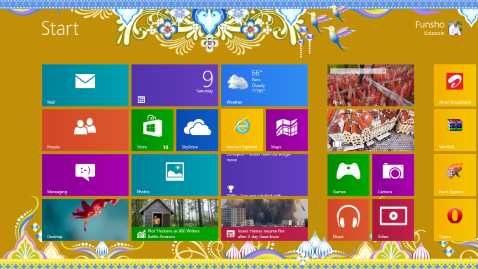
Windows 10 is so familiar and easy to use, you’ll feel like an expert. The Start Menu is back in an expanded form, plus we’ll bring over your pinned apps and favorites so they’re ready and waiting for you.
It starts up and resumes fast, has more built-in security to help keep you safe, and is designed to work with software and hardware you already have.
This combines the strengths of Windows 8 with Windows 7.Windows Insider

Millions of people are already using Windows 10

The Windows Insider Program is a global community of fans who love Windows and want to help make it better. Insiders see the operating system in its earliest stages, and play a role in shaping it. Their feedback has contributed to the best Windows ever. Learn more about being a part of the Windows Insider community.

It’s how the doing gets done

The web that works the way you do

Windows 10 comes with Microsoft Edge, an all-new browser that’s built to give you a better web experience. Write2 or type notes directly on webpages and share them with others, read online articles free of distraction, and save your favorite reads for later access. And with Cortana3 enabled, you get instant access to key actions—like making reservations or reading reviews—without leaving the page you’re on.

Multi-doing helps you get to “done“ faster

Easily snap up to four apps in place and see all open tasks in a single view. You can even create virtual desktops when you need more space or want to group things by project.
This Windows will definitely blow the other Windows versions out of the water.Windows Insider

Windows Store is your one-stop shop

Introducing the new Windows Store, a unified shopping experience across every Windows 10 device. Browse the store on your PC, tablet, or phone and easily purchase great digital content including apps, games, music, movies and TV shows.4

It’s the most personal Windows yet

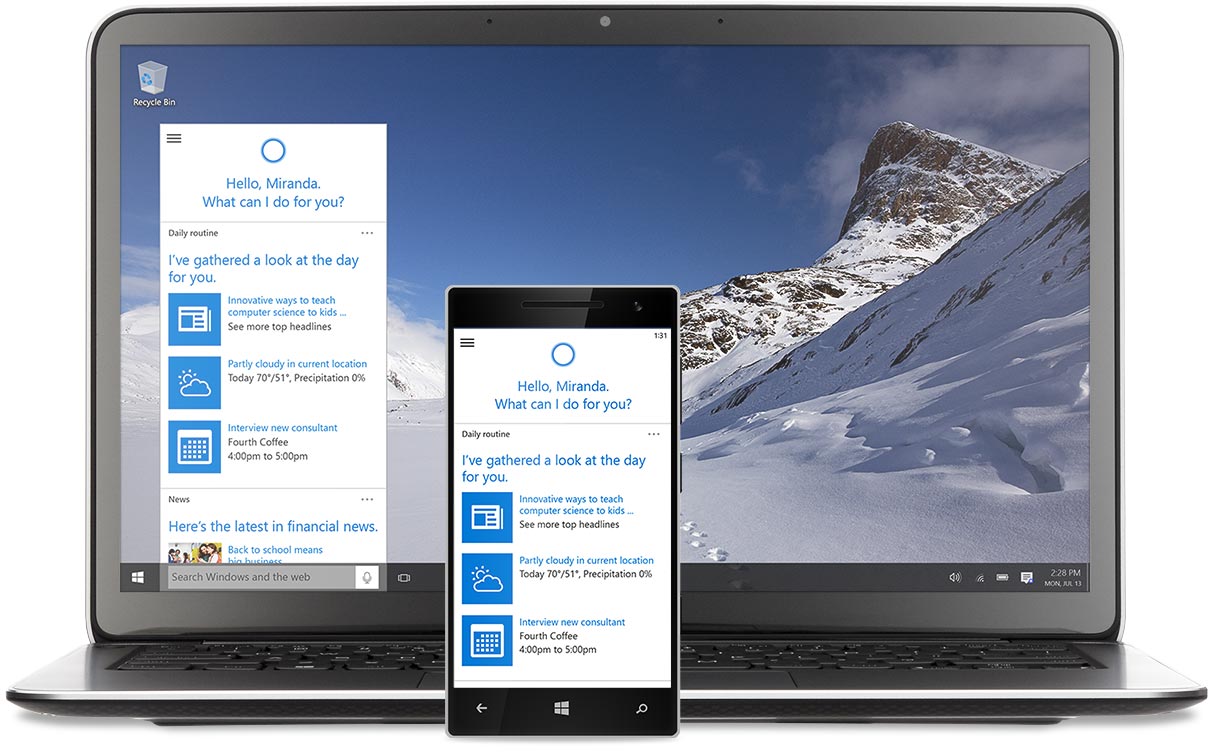
Laptop and Windows phone with Cortana on the screens

Meet Cortana, your truly personal digital assistant

Cortana3 works across your day and your devices to help you get things done. By learning more over time, Cortana becomes more personal and useful to you. Cortana’s also best at reminders, delivering them at the right time and place so you forget less and can do more.
Using Cortana with reminders is AMAZING!Windows Insider

Interact with your device however you want

Touch2, type, write5: the choice is yours so you can use whatever works best for what you’re doing.

Flexibility to work how you want

An all-in-one, 2-in-1, and Windows phone all showing the same image

The best screen is always the one you’re on

Windows 10 enables your apps to look and work great in all modes, on all devices. On 2-in-1 devices, your screen can be optimized to work with touch or keyboard and mouse.

Xbox is coming to Windows6

Get the biggest Xbox franchises with the best of Xbox Live. Start recording gameplay in seconds, compete against console players, and stream games from your Xbox One console to your Windows 10 device from anywhere in your home.
I have two words to say: Good JobWindows Insider

Great apps come standard

Windows 10 comes with great built-in apps like Maps, Photos, Mail & Calendar, Music, and Video. And these apps use OneDrive to back up your information and sync seamlessly across your Windows 10 devices, so you’re never far from what you need.
Apps tiles for Maps
App tile for Photos
App tile for Mail
App tile for Music
App tile for Video
App tile for OneDrive